If you make or mod games, sooner or later you need to turn a PNG into a DDS texture. PNG is perfect for editing and sharing, but game engines want a format built for the graphics card. That format is DDS, and this guide walks you through the whole journey from a flat PNG to a clean, game ready DirectDraw Surface file.
By the end you will know what DDS is, which compression format to pick, how to keep your transparency intact, and how to convert a single image or an entire folder in seconds using a browser based tool.
What a DDS file actually is
DDS stands for DirectDraw Surface. It is a container designed by Microsoft to store textures in a way graphics hardware can read with little or no extra processing. Instead of decoding a compressed stream the way a PNG does, a DDS texture can sit in video memory in its final, GPU friendly form. That is why engines load DDS quickly and why it saves memory during rendering.
Most DDS files use block compression. Pixels are grouped into 4 by 4 tiles, and each tile is stored with a compact set of colour endpoints plus per pixel indices. The result is a fixed, predictable file size and fast sampling on the GPU.
Why convert PNG to DDS at all
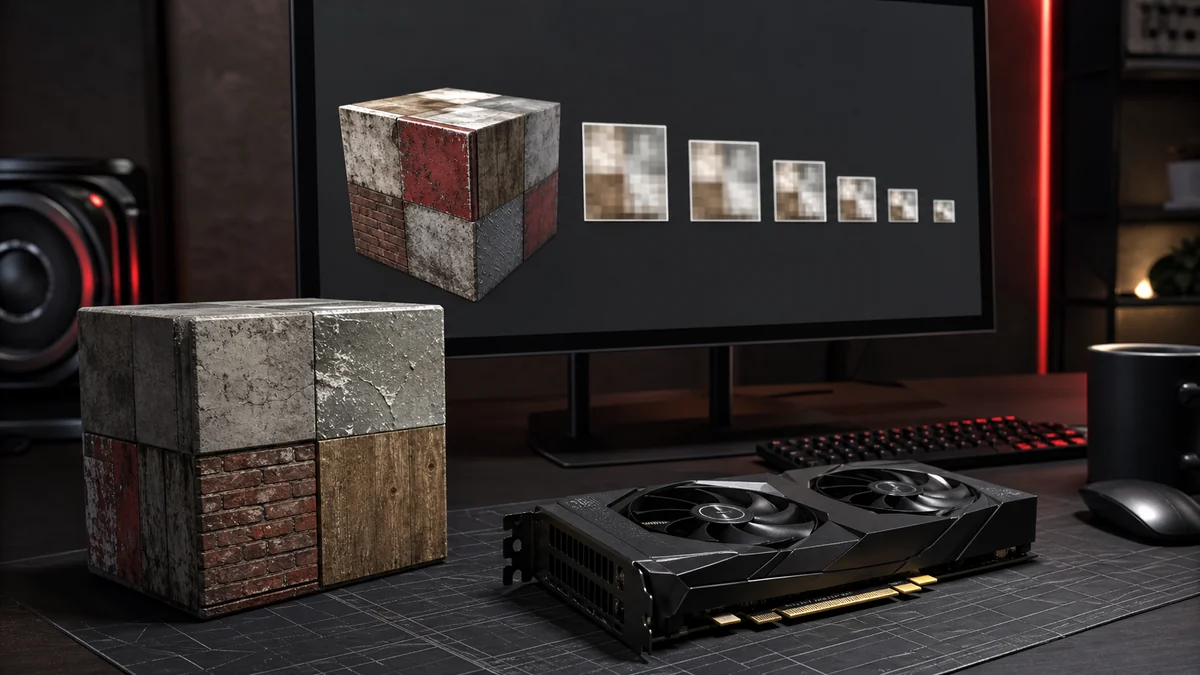
A PNG keeps every pixel exactly, which is ideal while you are painting or editing. The trade off is that a large PNG can be heavy in memory once it is decoded, and most engines cannot use it directly as a hardware texture. Converting to DDS gives you three things: smaller memory use thanks to block compression, faster loading because the data is already GPU ready, and support for mipmaps that keep textures crisp at a distance.
Keep your PNG as the master copy. Convert to DDS as the final export step, the same way you would render a final image from a working file.
Choosing the right DDS format
The format you pick decides the balance between size and quality. Here is a quick reference.
| Format | Alpha | Best for |
|---|---|---|
| DXT1 (BC1) | None or 1 bit | Opaque textures and clean cutouts where size matters |
| DXT5 (BC3) | Full 8 bit | Textures with soft transparency, the safe all rounder |
| BC7 | Full 8 bit | High quality colour where detail beats file size |
| Uncompressed RGBA | Full 8 bit | Lossless masters and reference exports |
If you are unsure, start with PNG to DDS DXT5. It preserves smooth alpha and works for the majority of textures. Reach for PNG to DDS DXT1 when your image is fully opaque and you want the smallest file, and choose PNG to DDS BC7 or high quality output when a hero texture needs to look its absolute best.
Converting PNG to DDS step by step
Using our browser based converter, the process is short:
- Add your files. Drag a PNG onto the dropzone or click to browse. You can add many at once.
- Pick a format. Choose DXT1, DXT5, BC7, or uncompressed from the format menu.
- Set orientation. If your engine expects the texture origin at the bottom, turn on the vertical flip.
- Convert. Press convert and each PNG becomes a DDS file on your device.
- Download. Grab files one by one, or download the whole batch as a ZIP.
Because the tool runs in your browser, nothing is uploaded and there is no waiting for a server.
Keeping transparency intact
Transparency is where many conversions go wrong. If your PNG has soft, feathered edges, choose DXT5 or BC7 so the alpha channel is stored with enough precision. DXT1 only supports a single on or off alpha bit, which is great for hard edged cutouts but will produce jagged edges on a soft shadow or glow. When in doubt, DXT5 keeps your edges smooth.
Avoiding common mistakes
Three quick habits will save you trouble. First, use power of two dimensions such as 512 or 1024 when you can, since many engines expect them. Second, keep a PNG master so you never lose detail to repeated compression. Third, always test the DDS in your target engine before shipping, because different engines read formats in slightly different ways. For more on this, see our guide on common DDS export mistakes.
Frequently Asked Questions
DXT1, DXT5 and BC7 use block compression, which is lossy but designed to look good on textures. The uncompressed RGBA option is lossless. Keeping a PNG master means you never lose your original detail.
DXT5 and BC7 store a full alpha channel with smooth gradients, while DXT1 supports only a single on or off transparency bit. Choose DXT5 for soft edges.
Yes. Add a whole batch, convert them together, and download them as a single ZIP archive.